
Seamless Transition: Your Comprehensive Guide to Moving from Google Reader to Feedly
The digital landscape often shifts, and few shifts were as impactful for content enthusiasts as the discontinuation of Google Reader. Once the undisputed king of RSS feed aggregation, its departure left millions searching for a reliable and intuitive alternative to keep up with their favorite blogs, news sites, and online publications. If you’ve been grappling with this change or are simply looking to optimize your content consumption, you’ve landed in the right place.
While many excellent RSS readers emerged to fill the void, Feedly quickly rose to prominence as a top contender, revered for its user-friendly interface and robust feature set. This article serves as your definitive guide to making the seamless transition from Google Reader to Feedly. For those considering other options, particularly Bloglovin’, we’ve also provided a separate tutorial here, tailored for a different content aggregation experience.
Feedly stands out for several reasons. Having personally utilized Feedly on mobile devices for an extended period, the ease of integrating it into a desktop workflow was a pleasant revelation. The transition is remarkably straightforward, and Feedly often feels like a natural evolution rather than a complete departure from Google Reader. Its highly customizable interface, extensive app ecosystem, and diverse formatting options mean you can tailor your reading experience to precisely match your preferences, ensuring your daily dose of information is not just accessible, but enjoyable.
This tutorial will walk you through the essential steps to transfer your cherished collection of Google Reader blogs and feeds over to Feedly. It’s important to note that while Feedly’s current cloud-based nature minimizes browser-specific issues, older methods or specific setups might have required repeating steps across different browsers like Chrome or Firefox. Modern Feedly largely centralizes your subscriptions, making management much simpler once you’re set up. Also, it’s worth mentioning that while Feedly has evolved significantly, it generally focuses on modern web standards, meaning older browsers like Internet Explorer might not offer the optimal experience or full functionality.
Let’s embrace the future of content consumption with Feedly!
Understanding the Shift: Why Feedly Became the Go-To Google Reader Alternative
The announcement of Google Reader’s shutdown in 2013 sent ripples of panic through the online community. For many, Reader was more than just an RSS aggregator; it was the central hub for their internet activity, a personalized newspaper delivered daily. Its simplicity and effectiveness made it indispensable. The sudden vacuum created a fertile ground for innovation, and several platforms stepped up to the challenge. Among them, Feedly quickly distinguished itself by understanding the core needs of former Google Reader users while simultaneously pushing the boundaries of what an RSS reader could be.
Feedly’s success can be attributed to several strategic decisions. Firstly, it offered an incredibly intuitive migration path for Google Reader users, often allowing for a single-click import of all subscriptions. This ease of transition was critical during a period of uncertainty. Secondly, Feedly focused on delivering a powerful yet aesthetically pleasing user experience. Its visual design, often likened to a digital magazine, appealed to users who wanted more than just a list of headlines. Furthermore, Feedly’s commitment to continuous development and its robust API allowed for deep integration with other popular productivity tools and “read-it-later” services, solidifying its position as a comprehensive content management solution.
Getting Started: Your Step-by-Step Feedly Migration Guide
Migrating your subscriptions to Feedly is a straightforward process designed for maximum user convenience. Here’s how you can make the switch and begin enjoying a superior content aggregation experience:
Step 1: Accessing Feedly and Initiating the Setup
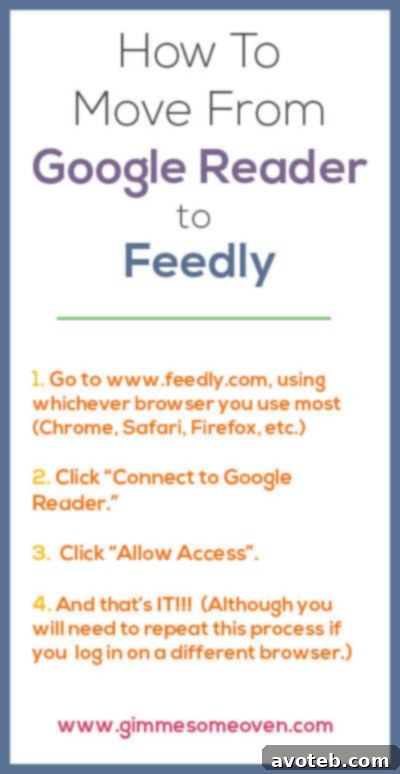
The first thing you’ll want to do is navigate to the Feedly website. You can typically do this by simply typing www.feedly.com into your browser’s address bar. Once on the homepage, you’ll be greeted with options to sign in or create an account. Feedly offers various sign-up methods, including using your Google, Apple, or Facebook accounts, or simply an email address. For former Google Reader users, signing in with your Google account was historically the most efficient way to initiate the import process, as Feedly was designed to tap directly into your Google Reader data (though Google Reader itself is long gone, Feedly still uses Google account authentication for convenience and security).
Once you’ve chosen your preferred sign-in method and authorized Feedly, the platform will guide you through the initial setup. This process is remarkably user-friendly and usually involves a few clicks.
Step 2: Importing Your Google Reader Feeds (or OPML File)
In the immediate aftermath of Google Reader’s shutdown, Feedly provided a direct and intelligent way to import your subscriptions. By signing in with the Google account you used for Reader, Feedly could often automatically detect and migrate all your previously subscribed feeds and their organization. This feature was a lifesaver for countless users.
However, if you had previously exported an OPML file from Google Reader (or any other RSS reader), Feedly also provides a simple option to import it. An OPML file is a standard format for exchanging lists of RSS feeds. If you need to import an OPML file:
- After signing in, look for an “Import” or “Add Content” option, often found in the left sidebar or through the settings menu.
- Select the “Import OPML” option.
- Browse your computer to find and upload your saved OPML file.
Feedly will then process this file, adding all your feeds and attempting to preserve their original folder structure, making the transition feel incredibly natural.
Step 3: Discovering and Adding New Content
Beyond importing your existing feeds, Feedly excels at helping you discover new and exciting content. The “Discover” section is a powerful tool for finding new blogs, websites, and topics based on your interests. You can browse by category, explore popular sources, or search for specific keywords.
- To add a new feed, simply type the website’s URL or a topic into the search bar at the top of the Feedly interface.
- Feedly will often suggest relevant feeds. Once you find one you like, click “Follow.”
- You’ll then be prompted to organize this new feed into a category (e.g., “Tech News,” “Food Blogs,” “Current Events”).
This proactive approach to content discovery ensures your reading list remains fresh and relevant.
Step 4: Customizing Your Feedly Reading Experience
One of Feedly’s most acclaimed features is its extensive customization. You can truly make your reader look and feel just the way you want it. Navigate to the “Settings” or “Preferences” menu (often accessible via the gear icon or your profile picture).
Key customization options include:
- Layouts: Choose from various views such as Magazine, Cards, List, or Title-only, depending on whether you prefer a visually rich experience or a minimalist approach focused purely on headlines.
- Themes: Switch between light and dark themes for optimal viewing comfort, especially during different times of the day.
- Font Sizes: Adjust text sizes to enhance readability.
- Keyboard Shortcuts: Learn and utilize Feedly’s extensive keyboard shortcuts for efficient navigation and content management without touching your mouse. This can significantly speed up your content review process.
Experiment with these settings to find the configuration that best suits your reading style.
Step 5: Organizing Your Feeds for Optimal Flow
Effective organization is crucial for a streamlined reading experience. Feedly allows you to create categories (often referred to as “collections” or “folders”) to group related feeds. This prevents information overload and ensures you can easily dive into specific topics when you want to.
- To move a feed into a category, simply drag and drop it within the left sidebar, or use the settings option for each feed.
- Create new categories for different areas of interest, hobbies, or professional topics.
- Consider using a “Must Read” category for your most essential sources, and separate categories for more casual browsing.
Well-organized feeds mean less time searching and more time reading.
Beyond the Basics: Advanced Feedly Features to Enhance Your Productivity
Feedly is not just a replacement for Google Reader; it’s a powerful content aggregation platform with advanced features designed to boost your productivity and ensure you never miss important updates.
- Read-It-Later Integrations: Feedly integrates seamlessly with popular services like Pocket, Instapaper, and Evernote. This allows you to save articles for later reading, annotate them, or archive them for research with a single click. This is incredibly useful for longer articles that require dedicated attention.
- Sharing Options: Easily share interesting articles with your network. Feedly offers direct sharing to social media platforms like Twitter, Facebook, LinkedIn, and even via email, making it simple to curate and disseminate valuable content.
- AI-Powered Prioritization (Feedly AI): For users with many subscriptions, Feedly offers AI features (often part of premium plans) that learn your preferences and prioritize articles based on your reading habits and the importance of topics you follow. This intelligent filtering helps you cut through the noise and focus on what truly matters.
- Boards: Organize and collaborate on specific topics with Feedly Boards. You can save articles to custom boards, share them with colleagues or friends, and even add notes, making it an excellent tool for research projects or team collaboration.
- Search Functionality: A robust search feature allows you to quickly find past articles within your subscribed feeds, which can be invaluable for referencing information or revisiting specific topics.
Feedly on the Go: Mobile Apps and Browser Extensions
One of Feedly’s greatest strengths is its ubiquitous availability. Whether you’re at your desktop, on your commute, or lounging on the couch, your feeds are always synchronized and accessible. Feedly offers dedicated mobile applications for both iOS and Android devices. These apps mirror the elegant design and core functionality of the web version, providing a consistent and enjoyable reading experience no matter where you are. Notifications for new content, offline reading capabilities, and easy saving to “read-it-later” services are standard features that make mobile Feedly indispensable.
Furthermore, Feedly provides browser extensions for popular browsers like Chrome, Firefox, and Safari. These extensions allow for quick saving of new websites to your Feedly account, often with just a click, making it incredibly easy to expand your content library as you browse the web. This multi-platform approach ensures that your content consumption workflow remains seamless and efficient across all your devices.
Addressing Common Concerns and Tips
Multi-Browser Usage
In the past, especially with browser-based extensions of Google Reader, managing subscriptions across different browsers could be cumbersome. Feedly, however, operates primarily as a cloud-based service. Once you’ve created your account and imported your feeds on one device or browser, your entire library of subscriptions and reading progress is synchronized across all instances where you log in. This means you don’t need to repeat the migration process for each browser you use; simply log into your Feedly account, and everything will be exactly as you left it.
Browser Compatibility (Internet Explorer)
The original note regarding Feedly not working on Explorer reflects a common trend in web development. Modern web applications like Feedly are designed to leverage the latest web technologies for speed, security, and advanced features. Older browsers, such as various versions of Internet Explorer, often lack support for these modern standards, leading to compatibility issues, degraded performance, or missing functionalities. For the best and most secure Feedly experience, it’s highly recommended to use a modern browser like Google Chrome, Mozilla Firefox, Microsoft Edge, or Apple Safari, which are regularly updated and fully support Feedly’s advanced capabilities.
Conclusion: Embrace a Smarter Way to Consume Content with Feedly
The transition away from Google Reader might have initially felt like a daunting task, but platforms like Feedly have transformed that challenge into an opportunity for a superior content aggregation experience. With its intuitive interface, robust migration tools, extensive customization options, and powerful features for discovery and organization, Feedly has firmly established itself as the premier choice for discerning readers.
By following this comprehensive guide, you can confidently move your entire digital library to Feedly, ensuring you remain connected to the stories, insights, and information that matter most to you. Say goodbye to scattered bookmarks and missed updates; say hello to a streamlined, personalized, and efficient way to stay informed. Cheers to a new era of content consumption!