
Unlock Instant Access: How to Turn Any Website into an iPhone App Icon
In today’s fast-paced digital world, convenience is king. We constantly seek ways to streamline our online experience, whether it’s through efficient browsing or quick access to our favorite content. While many iPhone users are pros at navigating their devices, a surprisingly simple yet incredibly useful trick often goes unnoticed: creating custom app icons for your most cherished websites directly on your iPhone’s home screen. Imagine a world where your go-to recipe blog, daily news site, or even a specific product page is just a tap away, without the need to open a browser and type in a URL.
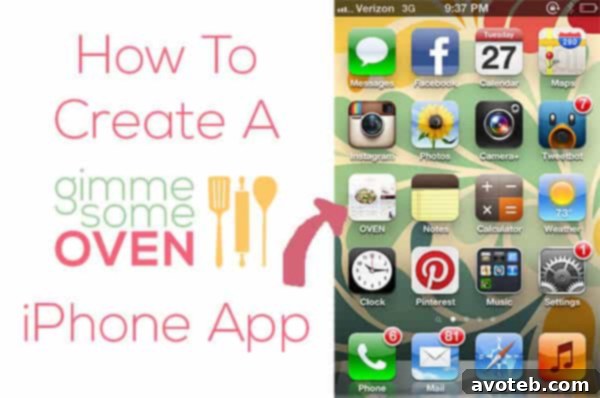
This ingenious method transforms any website into a pseudo-app, giving you instant access to its content. My good friend recently shared this gem with me, specifically showing me how to create a “Gimme Some Oven” app icon, and the sheer simplicity and utility of it compelled me to share this knowledge with all of you! It’s not just for blogs; this trick works for virtually any website you frequent. Let’s delve into how you can personalize your iPhone and make your digital life significantly more efficient.
Why You Need Website Shortcuts on Your iPhone Home Screen
The concept is straightforward: bypass the traditional browser opening and navigate directly to your desired online destination with a single tap. This eliminates several steps, saving you precious seconds and reducing digital friction. But the benefits extend far beyond mere speed. Here’s why adding website shortcuts to your iPhone home screen can be a game-changer:
- Instant Access & Time Saving: No more opening Safari or Chrome, waiting for it to load, searching through bookmarks, or typing out URLs. Your favorite site is literally on your home screen, ready to launch. For content you access multiple times a day, like a specific news portal or a frequently updated blog, this convenience is invaluable.
- Declutter Your Browser: Keep your browser tidy and focused on current tasks. Instead of having dozens of tabs open for sites you regularly visit, move those frequently accessed pages to your home screen. This reduces browser clutter and improves your device’s performance.
- Personalized Home Screen: Make your iPhone truly reflect your interests and habits. These custom icons integrate seamlessly with your existing apps, creating a cohesive and personalized interface tailored to your needs.
- App-Like Experience: For many websites, especially those built with Progressive Web App (PWA) technologies, adding them to your home screen provides an experience that closely mimics a native app. They can sometimes launch in full-screen mode without the browser’s address bar, offering an immersive view of the content.
- Enhanced Discoverability: Keep your most important websites front and center. If there’s a blog you’re trying to follow more closely, a recipe site you always turn to, or a productivity tool you rely on, an icon on your home screen acts as a constant, gentle reminder and an easy gateway.
- Lightweight & Efficient: Unlike downloading a full-fledged app, which can consume significant storage space and sometimes system resources, a web clip is extremely lightweight. It’s essentially a bookmark with an icon, linking directly to the live website without adding bloat to your device.
This simple trick empowers you to transform your iPhone into an even more powerful and personalized hub for all your online interactions. It’s truly brilliant in its simplicity and effectiveness.
Your Quick Guide: How to Create a Website Icon on Your iPhone Home Screen
The process is incredibly straightforward and requires only a few taps within Safari, Apple’s default web browser. While other browsers like Chrome are excellent, the “Add to Home Screen” feature is primarily integrated into Safari for this functionality. Here’s the step-by-step breakdown:

-
Step 1: Open Safari and Navigate to Your Desired Website
First, launch the Safari browser on your iPhone. In the address bar at the top, type or paste the URL of the website you wish to add to your home screen. For example, if you want to create an icon for a recipe blog, you would type in its exact web address. It’s crucial to use Safari for this function, as other browsers on iOS might not offer the “Add to Home Screen” option in the same way. Ensure the page loads completely before proceeding to the next step.
-
Step 2: Locate the Share Button
Once the website is fully loaded, look for the “Share” button at the bottom of your Safari screen. This icon typically looks like a square with an arrow pointing upwards out of it. It’s a universal symbol on iOS for sharing content, but it also contains a wealth of other useful actions, including the one we need.
-
Step 3: Scroll Down and Tap “Add to Home Screen”
Tapping the Share button will open a pop-up menu with various options. You might need to scroll down a bit within this menu to find the “Add to Home Screen” option. It usually has a small icon that resembles a plus sign or a home screen icon next to it. Tap on this option to proceed.
-
Step 4: Customize the Icon Name (Optional but Recommended)
After tapping “Add to Home Screen,” you’ll be presented with a preview of the icon and a text field where you can name your shortcut. By default, iOS will suggest a title based on the website’s title tag, which can sometimes be long or less descriptive than you’d like. This is your chance to edit the name to something concise, recognizable, and personal. For instance, “Gimme Some Oven” is perfect for a recipe site. Keep it short and sweet for optimal display on your home screen.
-
Step 5: Tap “Add” to Place It on Your Home Screen
Once you’re happy with the name, simply tap the “Add” button located in the top-right corner of the screen. Your new website shortcut, complete with its custom icon (which the website often provides itself, known as a favicon or web clip icon), will instantly appear on your iPhone’s home screen. It will typically land on the first available space or on a new page if your current screens are full.
And just like that, you have a dedicated icon for your favorite website! You can then tap and hold the icon to move it around, place it into folders, or arrange it alongside your other apps for optimal organization. This level of customization truly enhances the usability of your iPhone.
Beyond the Basics: Maximizing Your iPhone’s Home Screen Potential
Now that you’ve mastered the art of creating website shortcuts, consider how you can further optimize your iPhone’s home screen. Just as I had a moment today sorting through a buildup of emails and voicemails after taking a much-needed afternoon off for a haircut, organizing your digital space brings immense satisfaction and productivity benefits.
- Organize with Folders: Group similar website shortcuts into folders. For example, create a “Recipes” folder for all your favorite food blogs, a “News” folder for your daily reads, or a “Productivity” folder for online tools. This keeps your home screen clean and makes finding specific sites even easier.
- Prioritize Your Favorites: Place your most frequently accessed website icons on your primary home screens for instant visibility. Less-used but still important sites can reside on subsequent pages or within folders.
- Explore Progressive Web Apps (PWAs): Some websites are designed as Progressive Web Apps. When you add a PWA to your home screen using this method, it often behaves even more like a native app, sometimes even offering limited offline functionality or push notifications directly through Safari. Keep an eye out for websites that encourage you to “Add to Home Screen” as they are likely optimized for this experience.
- Consider Key Pages, Not Just Homepages: Don’t limit yourself to just a website’s homepage. If there’s a specific category page on a blog, an frequently updated author page, or a particular tool on a service website that you use constantly, you can create a shortcut directly to that specific URL.
This little tutorial, though simple, holds the power to significantly streamline your digital workflow and make your iPhone even more uniquely yours.
Discover More: Add Our Sister Sites to Your Home Screen!
And while you’re at it, why stop with just one? We highly recommend extending this convenience to our family of “Gimme Some” pages. Each offers unique content that you might find equally indispensable in your daily life. Adding them to your home screen will ensure you never miss out on our latest updates and inspiring content:
-
Gimme Some Film: For all the cinephiles and movie buffs out there, Gimme Some Film is your go-to source for insightful reviews, upcoming releases, classic recommendations, and everything in between. Never miss a beat in the world of cinema by having instant access to our film critiques and discussions.
-
Gimme Some Life: This platform is dedicated to enhancing your everyday existence. From wellness tips and personal growth strategies to home organization hacks and inspirational stories, Gimme Some Life aims to enrich your lifestyle. Add it to your home screen for a daily dose of motivation and practical advice.
-
Gimme Some Reads: A haven for bibliophiles! Dive into comprehensive book reviews, curated reading lists across various genres, author interviews, and literary discussions. If you love discovering your next great read, a direct shortcut to Gimme Some Reads is essential for your digital library.
-
Gimme Some Style: Elevate your aesthetic with Gimme Some Style. This blog covers everything from fashion trends and personal styling advice to interior design inspiration and tips for cultivating a beautiful living space. Keep abreast of the latest in design and fashion with a quick tap to our style guide.
By utilizing this simple iPhone feature, you’re not just creating shortcuts; you’re crafting a more efficient, organized, and personalized digital experience. Say goodbye to endless browser tabs and hello to instant access to the content that matters most to you. Happy tapping!